
 Documentation
Editor guide
Aim Offset Editor
Arrange frozen additive aim samples and apply their blend to the current base pose.
Editor view
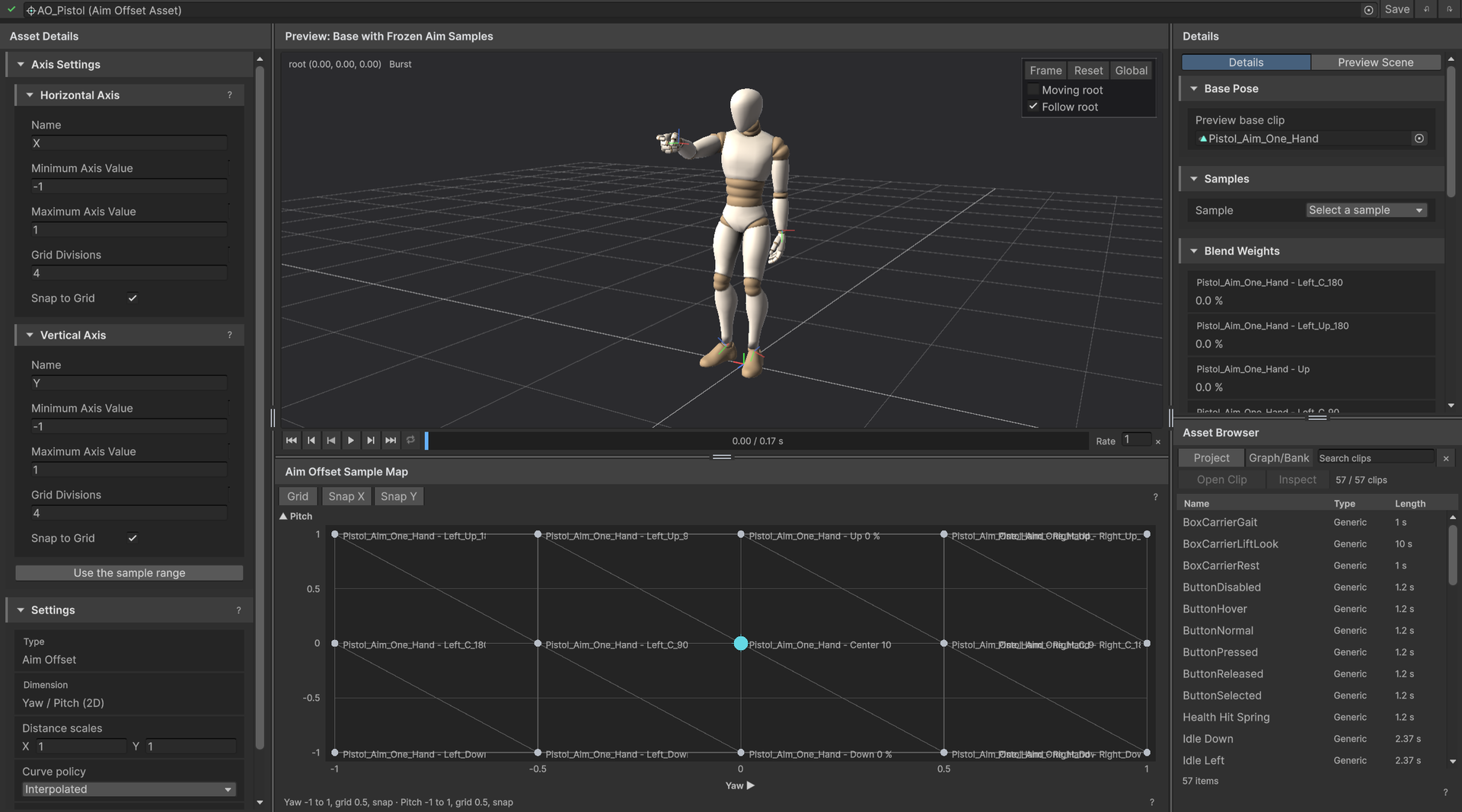
Open the tool
Double-click an Aim Offset asset. It uses the shared Blend Space workspace.
Asset Details
An Aim Offset uses a 2D yaw and pitch map. Name the axes and choose an Editor range that makes the sample layout clear.
All sample clips must supply compatible additive data. The asset reports the additive space obtained from its sample clips.
| Control or section | Function |
|---|---|
| Yaw / Pitch axes | Define the query units and displayed map range. |
| Distance scales | Set relative coordinate scales for sample weighting. |
| Curve policy | Choose how frozen sample curves combine. |
| Additive | Check the sample representation. Set Additive Type on the clips. |
Viewport
The viewport shows the live base with the selected frozen aim blend applied to the preview mesh.
The sample map controls aiming. The preview base and its playback time control the ordinary pose below the aim delta.
Aim Offset Sample Map
Place each sample at its yaw and pitch coordinate. The query point blends the surrounding frozen poses.
The percentages identify the contributing samples. A sample position and a sample time are different values.
Sample Details
Select a sample to change its clip, yaw, pitch and frozen sample time.
Sample Time chooses a pose from that clip. It does not make that sample play as a separate timeline.
Preview Scene
Select the visible preview rig. Choose an ordinary base animation and set Alpha to control the aim amount. The authored Skeleton sets the preparation rig.
Use Save Preview Defaults to share the selected preview model and base clip in this asset. Use Shared Defaults removes your local overrides.
Asset Browser
Use the browser to find the additive sample clips. Open a sample in the Clip Editor when its pose or additive settings need work.
Basic procedure
- Set the same Additive Type on all aim sample clips.
- Place them on a 2D yaw and pitch map.
- Set a sample time for each frozen pose.
- Choose a target rig and an ordinary preview base.
- Move the query point across the map, then save the asset.
Saved data
- Save writes the sample layout and asset settings.
- Clip additive settings belong to the clips and are saved separately.
Requirements and limits
- The base pose must be ordinary. The samples must use one compatible additive representation.
- The query units come from the asset. They are degrees only when the sample coordinates use degrees.
- Frozen samples have no timeline events or root displacement.
Reference details
These instructions describe BAS 1.0 in Unity 6000.3.7f1.