 Documentation
Node reference / Sources
Clip
Play one prepared animation clip. Each Clip node has its own playback clock.
How it works
The clock advances by the frame time multiplied by Speed. A speed of 0 holds the current time. A negative speed plays the clip in reverse.
The node reads the prepared pose, curves, root motion and events at that time. Loop controls what happens at the ends of the clip.
The clip settings determine whether the output is an ordinary pose or an additive delta. Mirror and Foot IK select the prepared clip form.
Inputs and output
Settings
| Setting | Default | Function |
|---|---|---|
| Clip | None | The animation clip to play. Assign a clip that the graph can prepare for the target rig. |
| Show as Pin | Off | Show the Clip input on the node. A configured source keeps the pin visible until you disconnect it. |
| Mirror | Off | Use the prepared mirrored Humanoid form. |
| Foot IK | Automatic | Select Automatic, Off or On for Humanoid clip preparation. Automatic uses On for ordinary targets and Off for direct targets. |
| Speed | 1 | Set the playback rate, or connect an input. |
| Loop | Use Clip Setting | Use the clip loop setting, force Loop, or select Play Once. Play Once holds the end poses. |
| Start Time | 0 seconds | Set the initial clock position in seconds. |
| Additive | From clip settings | This is a read-only report on the node. Set Additive Type in the clip settings. |
Common node controls
Name changes the canvas label. Type identifies the node and is read-only. Advanced shows structural pose connections and retained data.
Scalar input rows can use a stored constant or a compatible connected source. Use Show as Pin where available to show an optional input on the card. The selected source supplies the value.
Expose for Override makes the Clip or Asset resource available to an Animation Graph Override asset. It does not change the assigned resource by itself. The clip Additive report links to the clip settings where applicable.
Setup example
- Create a Clip node and assign an idle clip.
- Keep Speed at 1 and choose the required Loop setting.
- Connect Pose to Output Pose, or to another pose node.
Try it in Gallery
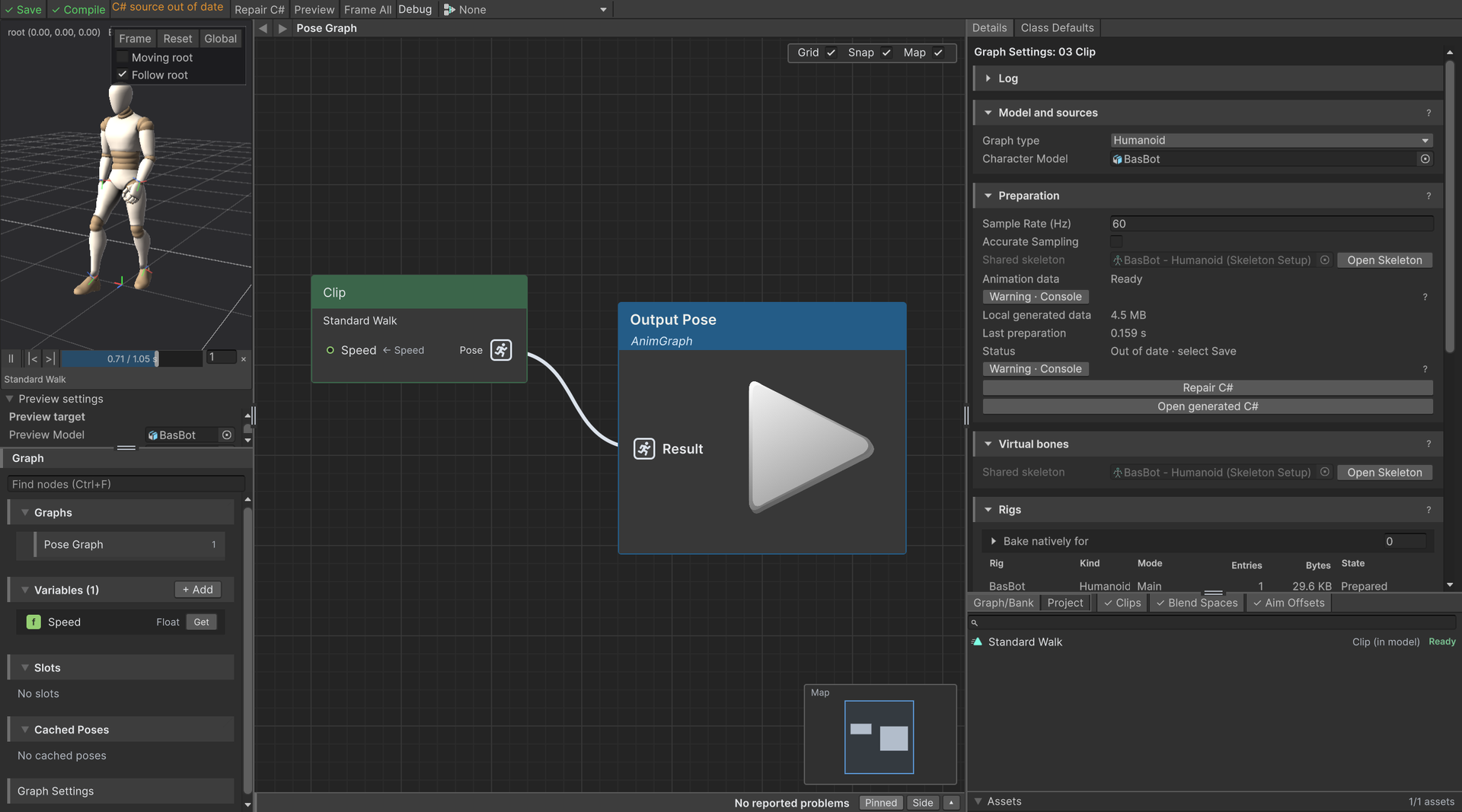
Open 03 Clip in the Gallery Graphs folder. Change Speed to control the rate at which Clip plays Standard Walk.
Requirements and limits
- Synchronized blends and Animator state motions require Clip nodes with constant Speed 1 and Start Time 0.
- Generic and Object Hierarchy targets require Foot IK Automatic. Mirror is a Humanoid preparation option.
Editor guides
Reference details
BAS 1.0 reference. Node type: ClipNode. Main source: AnimNodes.cs. Defaults also use the node constructor and the shared Editor field definitions.