
 Documentation
Editor guide
Graph Animator
Assign a graph to a scene character and set up playback.
Editor view
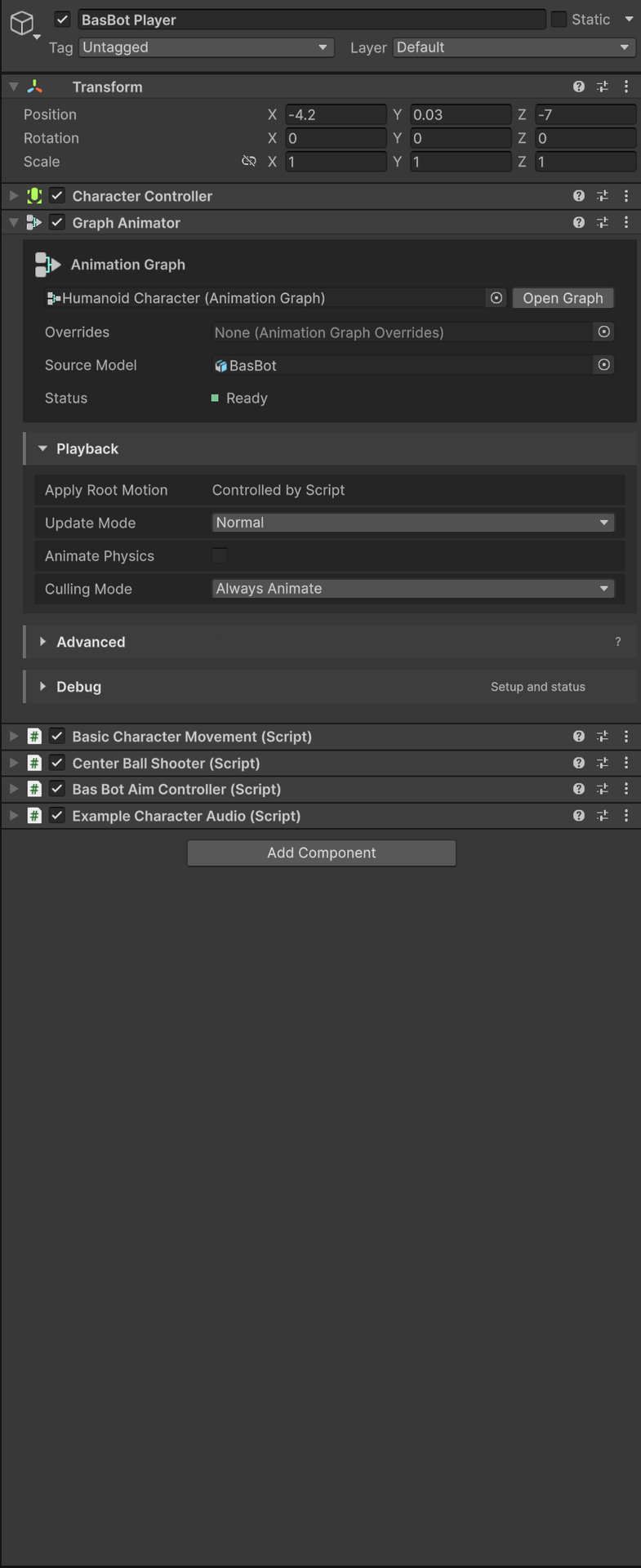
Open the tool
Select a GameObject with Graph Animator. To add the component, drag a saved graph onto the character in the Hierarchy.
Inspector
The graph defines the animation. Each character has its own playback state. Follow the action beside Status and wait for Ready.
A different Humanoid model uses Borrow by default. Select Bake for this model to prepare its own data. Advanced shows Limb Correction for a character that borrows.
| Control or section | Function |
|---|---|
| Graph and Overrides | Choose the graph and any Animation Overrides to apply to this character. |
| Source Model | BAS finds the source from the character. Select the source yourself if BAS cannot identify it. |
| Status | Follow the available action, such as Set Up Character, Save Graph or Compile. Point to the status for more detail. |
| Playback | Set root motion, Update Mode, Animate Physics, culling and playback settings for this character. |
| Advanced | Set Default Slot, additional graphs, overrides and visibility renderers. Use Add Profile under Character Outputs to assign components. |
| Debug | Inspect the Skeleton, Baked or Borrow state, Statistics and live data. |
Basic procedure
- Assign the graph.
- Complete the setup action in the Status row.
- Choose an Update Mode and root motion settings.
- Wait for Ready, save the scene and enter Play Mode.
Saved data
- Component settings and output assignments are saved with the scene or prefab.
Requirements and limits
- Normal follows scaled frame time. Fixed follows the physics step. Unscaled Time continues at time scale zero.
- Animate Physics moves kinematic Rigidbody bodies. The new Rigidbody Transform pose is visible after physics simulates.
- An enabled Unity Animator with a controller can also drive the hierarchy. Disable it or remove its controller when BAS should drive it.
Reference details
These instructions describe BAS 1.0 in Unity 6000.3.7f1.
Related Editor types: GraphAnimatorEditor.