
 Documentation
Editor guide
Montage Editor
Arrange clips on slot tracks, define section routes, and add timed notifies and curves.
Editor view
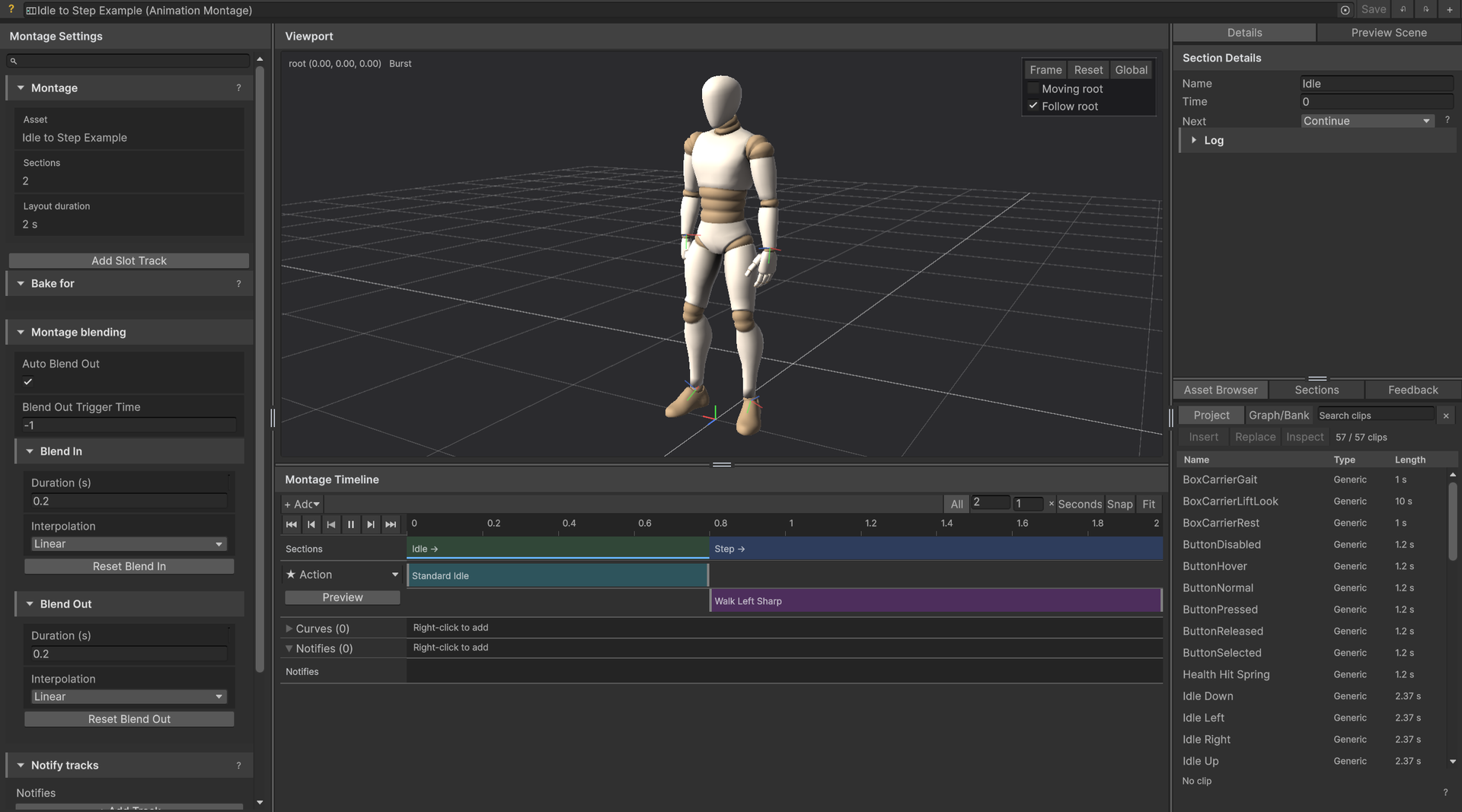
Open the tool
Double-click an Animation Montage asset.
Montage Settings
Montage Settings holds slot tracks, blend settings, notify tracks, curves and source information. In a narrower window, open the Montage or Settings tab.
Blend In and Blend Out shape the change between the underlying pose and montage playback. They do not trim the clip segments.
| Control or section | Function |
|---|---|
| Slot tracks | Add tracks and assign the project slot names that receive their playback. |
| Blend In / Blend Out | Set durations and response curves. |
| Auto Blend Out | Control automatic blend-out near the end. A negative trigger time uses the blend-out duration. |
| Notify tracks / Curves | Organize timed notifications and montage-owned float channels. |
Viewport
The viewport shows the montage on the preview mesh with the selected preview context. The shared timeline time drives the preview.
A preview track choice can isolate a slot. Effects and delivered-event feedback are separate from the visible bone pose.
Montage Timeline
Slot tracks share one montage timeline. Each segment has a montage start, source range and play rate.
Section markers divide that timeline into named route points. A section can identify the next section to play.
| Control or section | Function |
|---|---|
| Segments | Place, select, trim and move source clips within a slot track. |
| Sections | Set named positions and route connections. |
| Notifies | Place point or range actions in montage time. |
| Curves | Set float values over montage time, with key interpolation and tangents. |
| Transport | Scrub and play the composed montage. Preview looping does not change section routes. |
Details
The upper-right panel shows the current section, segment, notify or curve selection. The fields change with that selection.
For a segment, check the slot, source clip range, montage position and play rate. For a notify, check its kind, time, action and binding.
Preview Scene
Choose the visible target and optional graph context in Preview Scene. The Skeleton field on the asset sets its preparation rig.
Choose Save Preview Defaults to share the current preview model and base clip. Use Shared Defaults restores the shared choices on this computer.
Browser and feedback
The lower-right area provides animation browsing and playback feedback. Use the browser to find clips for the timeline.
Feedback reports delivered events and effect messages. A visible notify marker does not by itself prove that an actor binding handled it.
Asset Inspector
The asset Inspector identifies the montage and opens its authoring window. Use the Montage Editor for the timeline and selected segment controls.
Basic procedure
- Create or open a montage and select a preview rig.
- Add a slot track and place clips on its timeline.
- Set section markers and routes.
- Add notifies or curves, then inspect the montage in playback.
- Save the montage and prepare the target graphs or declared code targets that use it.
Saved data
- Save applies pending native curve edits and writes the montage asset. If another edit replaced the keys of a curve, the window tells you when it dropped the pending edit. Source clips remain separate assets.
- Clip ranges, segment positions, section routes, notifies and montage curves are saved montage data.
Requirements and limits
- The slot names must match the graph used for playback.
- Notify actions need valid assets or actor bindings. Preview feedback does not replace a runtime check.
- Older section-based montages use retained legacy data. Convert them with the explicit legacy conversion tool when required.
Reference details
These instructions describe BAS 1.0 in Unity 6000.3.7f1.
Related Editor types: MontageAuthoringWindow, AnimationMontageEditor.