
 Documentation
Editor guide
Project Slot List
Organize shared slot names and set the order for standalone montage previews.
Editor view
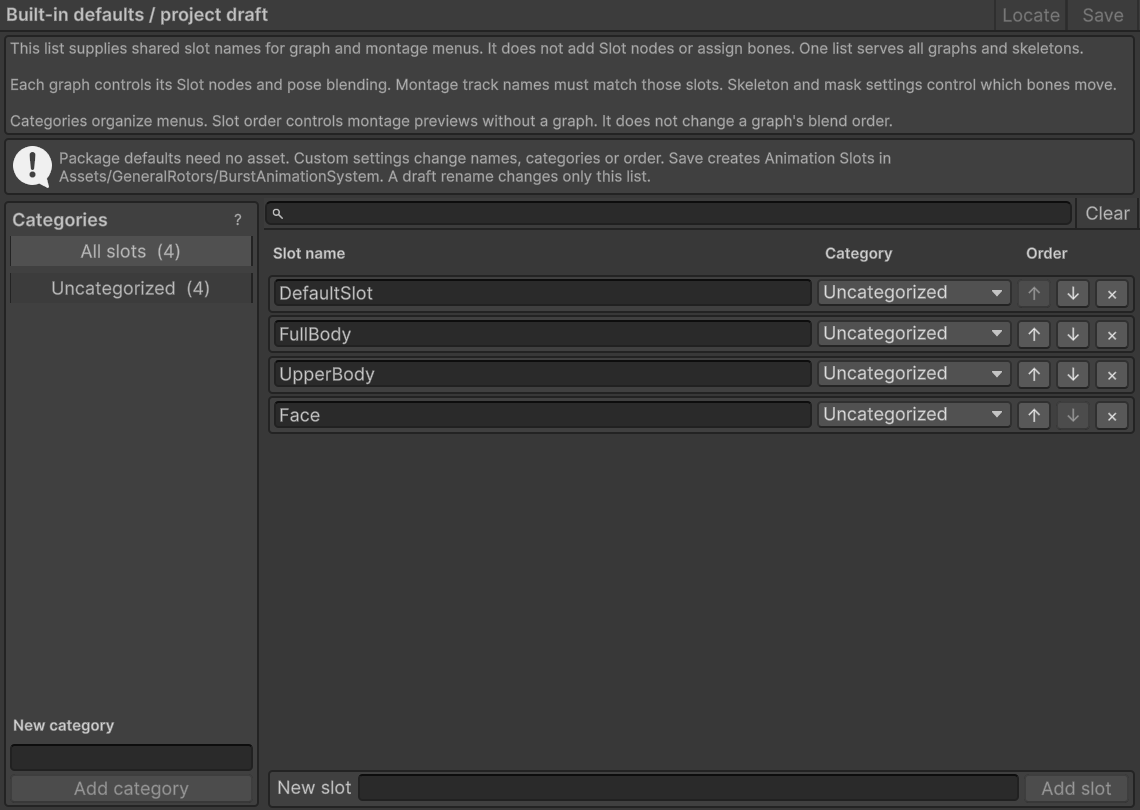
Open the tool
Use Tools > Burst Animation System > Settings > Project Slot List. The window is called Slot Manager.
Categories and slots
BAS starts with DefaultSlot, FullBody, UpperBody and Face. You can use the defaults without creating an asset.
Categories organize the slot menus. Preview order affects the Montage Editor when a graph is not selected. The graph controls its own pose blending.
| Control or section | Function |
|---|---|
| Categories | Add, rename or remove a category. Removing a category sends its slots to Uncategorized. |
| Slots | Add a shared slot or edit its name. Match the graph and montage names exactly. |
| Search | Filter by slot or category name. |
| Preview order | Move the slot up or down in the standalone montage preview order. |
| Save | Save custom names, categories or preview order. |
Asset Inspector
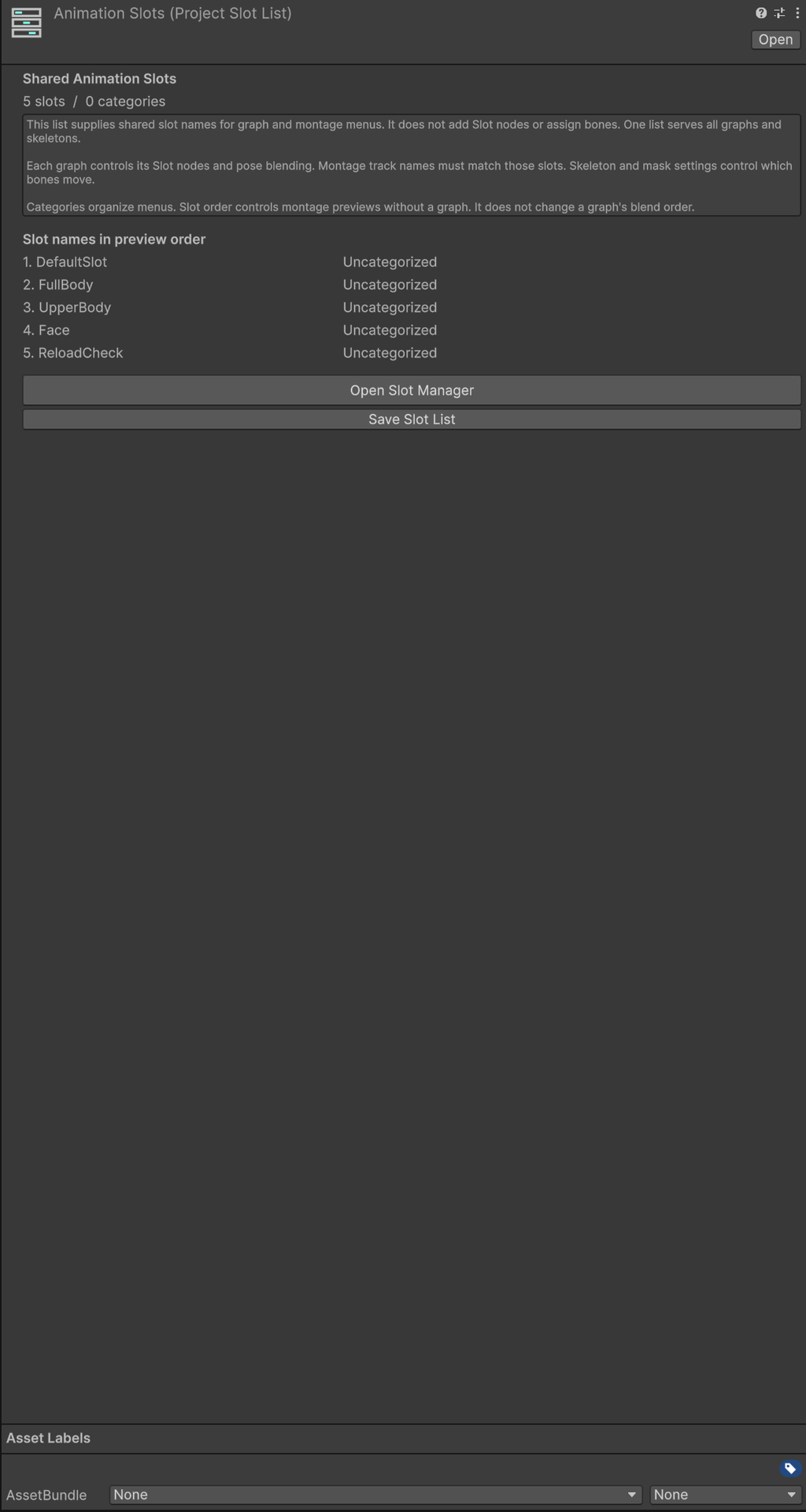
The asset Inspector shows the saved category and slot data. The Project Slot List window provides the list commands and search.
Basic procedure
- Open Slot Manager and add or edit a slot.
- Choose a category and preview order.
- Select Save.
- Use that slot name in the graph and montage.
Saved data
- Saving changed defaults first creates Animation Slots.asset under Assets/GeneralRotors/BurstAnimationSystem.
- When you rename a saved slot, choose Update Listed Assets to update graph and montage references, or List Only to keep those references as they are.
Requirements and limits
- Keep one shared list in the project.
- Removing a slot from the list leaves its existing references in graphs and montages.
Reference details
These instructions describe BAS 1.0 in Unity 6000.3.7f1.
Related Editor types: SlotListWindow, ProjectSlotListEditor.