
 Documentation
Editor guide
Clip Editor
Inspect a clip on a preview mesh, change its animation settings, and edit notifies and curves.
Editor view
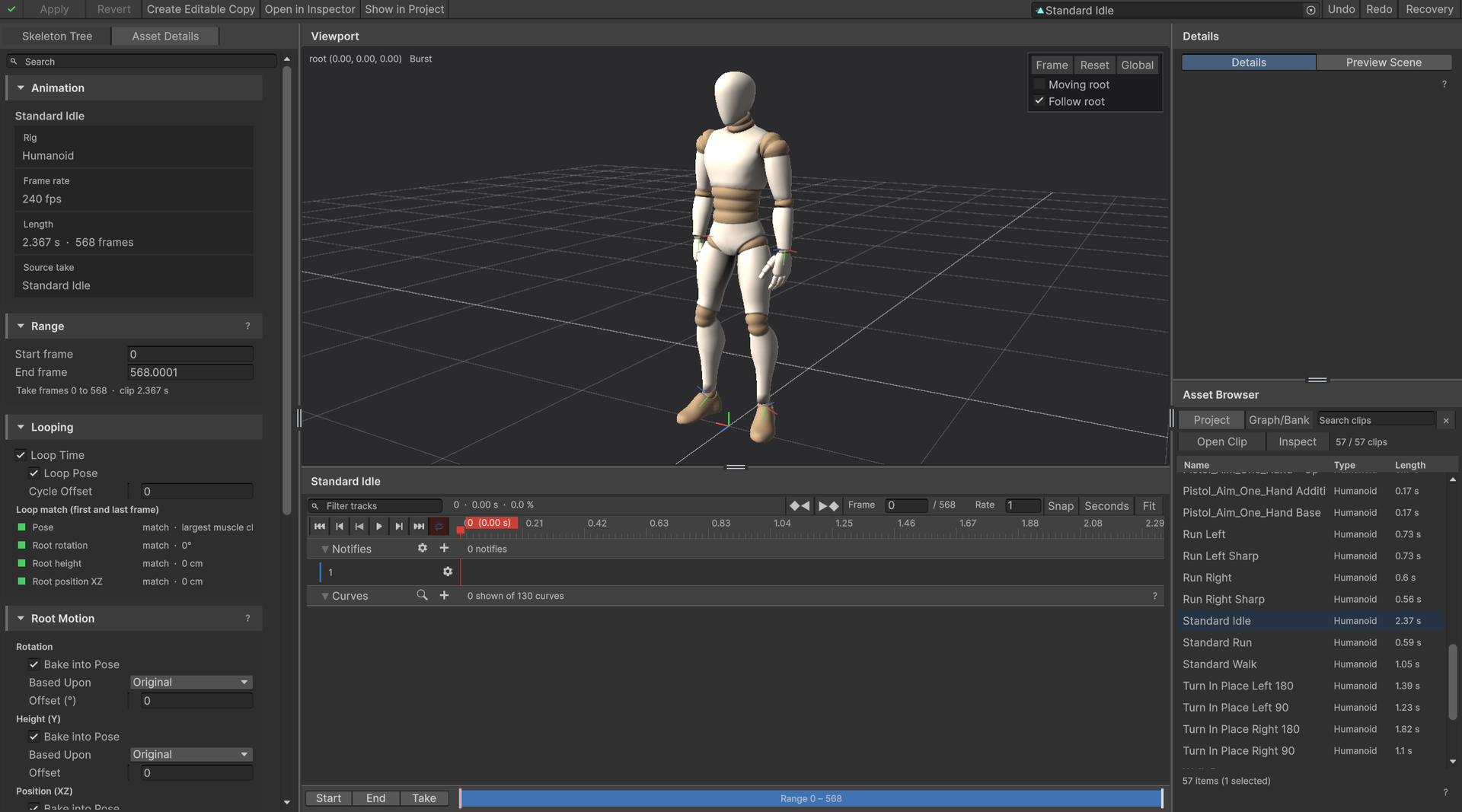
Open the tool
Double-click an Animation Clip, or use Tools > Burst Animation System > Editors > Clip Editor. The double-click shortcut is controlled by BAS Preferences.
Asset Details
This panel changes the selected clip. It shows the clip type, source frame rate and length, followed by the available animation settings.
For an imported clip, a range or setting edit remains in a draft until Apply. The preview can show the pending range before it is written. An editable .anim clip uses its own saved animation data.
| Control or section | Function |
|---|---|
| Looping | Loop Time repeats the clip. Loop Pose adjusts the end-to-start pose. Cycle Offset changes the start phase. |
| Loop match | Compare the first and last poses and root values. The colored results describe the selected range. |
| Root Motion | Bake into Pose keeps a motion in the pose. Based Upon and Offset control the root reference for rotation, height and horizontal position. |
| Pose | Mirror exchanges left and right for the supported Humanoid form. The reference-frame controls belong to the clip source settings. |
| Sampling and additive settings | BAS sample rates and Additive Type control prepared data. These are separate from the game frame rate. |
Viewport
The viewport shows the clip result on the preview mesh. Use it to compare the visible pose with the current playhead time.
Frame fits the character in the view. Moving root and Follow root change how root motion is displayed. They are preview choices.
| Control or section | Function |
|---|---|
| Frame / Reset | Fit or reset the preview view. |
| Global / Local | Choose the axes used by editable preview handles. |
| Moving root | Show root displacement in the preview scene. |
| Follow root | Keep the camera relative to the moving root. |
Timeline
The ruler, playhead and transport controls select the time shown in the viewport. The notify and curve tracks use the same clip time.
Select a notify or curve key to show its fields in Details. Track filtering changes what is shown, not the saved clip content.
| Control or section | Function |
|---|---|
| Transport | Play, pause, step, move to the ends, and repeat the preview. |
| Frame / Seconds | Inspect time as frames or seconds. Snap controls the editing grid. |
| Notifies | Add named tracks and place timed events. Track additions and renames stay pending until Apply. |
| Curves | Show the required curves, add a curve, and edit its keys and tangents. |
| Imported Take bar | On an imported clip, adjust the draft range. Start, End and Take use the playhead or the full source take. |
Selection Details
Details follows the selected notify, curve key or bone. It does not repeat all clip settings from Asset Details.
A bone selection shows the bone name and path, its local transform at the playhead, and its reference transform.
Notify Details
Select a notify marker to inspect its function name, time and payload. Use a name such as FootstepLeft to identify the event.
The function and payload must match the receiver used by gameplay. Preview playback alone does not supply that receiver.
| Control or section | Function |
|---|---|
| Function | Name the event callback. |
| Time | Set the event time inside the clip. |
| Payload | Set the string, float, integer or object fields used by the receiver. |
Imported clip range
An imported clip has a Range section in Asset Details. Start frame and End frame select the part of the source take used by this clip.
Change the range boundaries, then inspect the preview. Apply writes the pending importer changes. Revert discards them.
Preview Scene
Preview Scene selects the target model, optional graph context, layers and effects. The selected model and root are local preview choices stored in Library.
You can preview a Humanoid clip on another compatible Humanoid rig. Source-model fields identify the clip source. The Preview Scene selects the visible target.
| Control or section | Function |
|---|---|
| Preview model | Select the model shown in the viewport. |
| Graph context | Use the selected graph for source mappings and prepared setup. |
| Preview layers | Compare the source, base and additive composition when those choices apply. |
| Effects | Control preview effects and sound without changing runtime playback. |
Skeleton Tree
The Skeleton Tree tab lists the bones of the preview model. Select a bone here to inspect it in Details and in the viewport.
The tree is an inspection view. It does not rename or restructure the imported model.
Asset Browser
Browse the project or the graph and bank context. Search narrows the displayed clips.
Select a row to inspect its source. Open Clip changes the active clip. The visible preview target remains a separate choice.
Basic procedure
- Open a clip and select a preview model in Preview Scene.
- Scrub the timeline and inspect the pose.
- Select a notify, curve key or bone to inspect its fields.
- Apply imported source changes, or save the editable clip when the edit is complete.
Saved data
- Save writes the selected editable clip. Imported source changes use Apply and Revert.
- Create Editable Copy makes a separate .anim asset.
- Preview camera, playback and display choices do not change the source animation.
Requirements and limits
- Some controls depend on whether the source is an imported clip or an editable .anim asset.
- An imported clip uses its model importer. An editable clip saves animation data to its .anim asset. Apply warns if the notify file changed since you started editing it.
Reference details
These instructions describe BAS 1.0 in Unity 6000.3.7f1.
Related Editor types: ClipAuthoringWindow.