
 Documentation
Burst Animation System 1.0
Play animations from code
Set up a Slot and play a clip or montage from your C# script.
Give your graph a Slot
- Add a Slot to the pose path. Connect the base animation to Source Pose and connect the Slot output to Output Pose or your next pose node.
- Use DefaultSlot or enter another name on the Slot node. Use the Project Slot List to share names in slot menus. For a montage, match the track and graph slot names exactly.
- If the graph does not already use the clip or montage, set its Bake for to Every rig it fits and check the graph's shared animation scope.
- Save the graph. Check Animation Registry for the source's play name and prepared rigs.
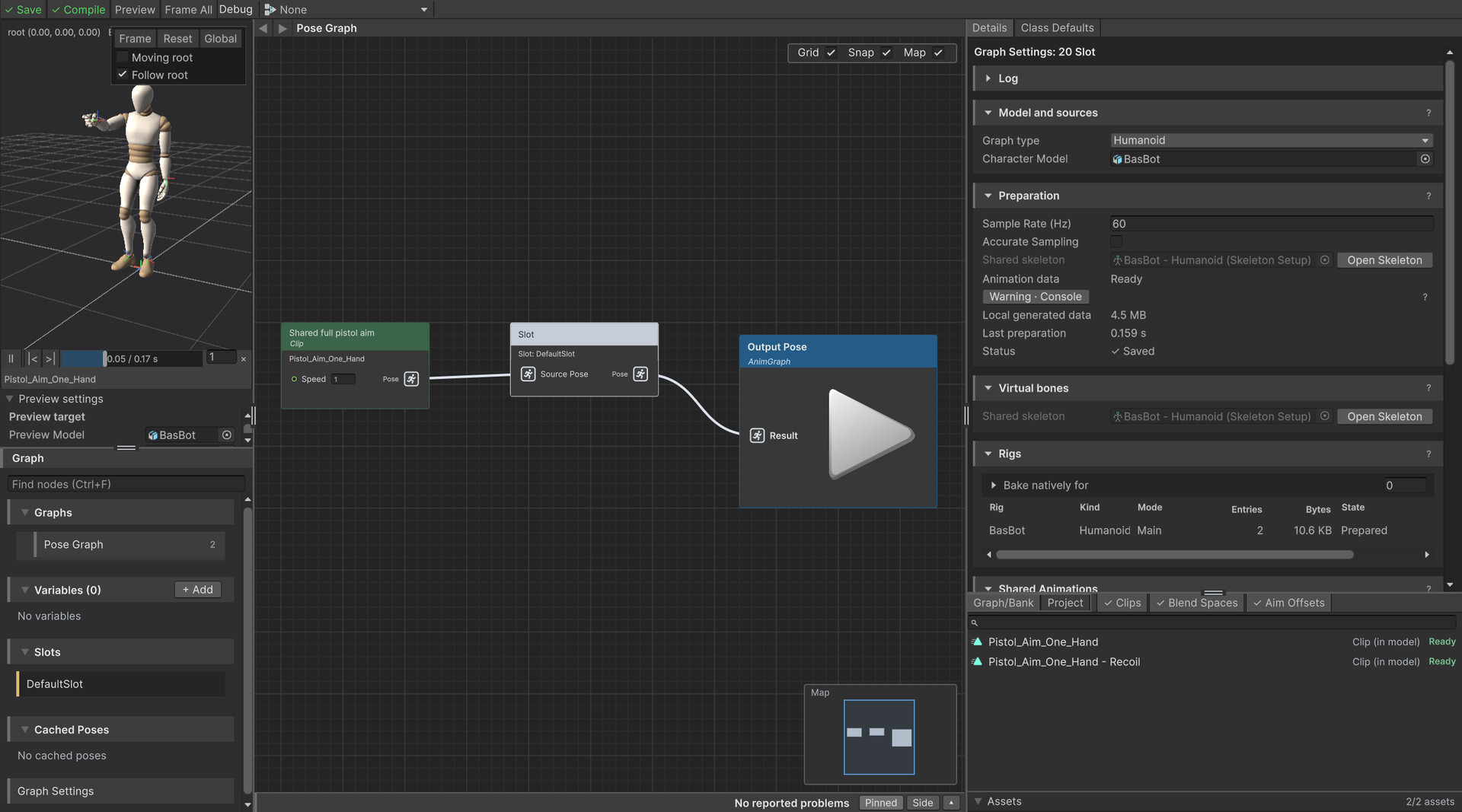
Play a clip or montage
Call playback methods after the Graph Animator registers. For example, call from
AnimInstance.OnStart or when GraphAnimator.Instance is available.
using BAS;

// animator is the registered GraphAnimator.
SlotHandle attack = animator.PlayClip(attackClip, fadeDuration: .15f);
SlotHandle reload = animator.PlayMontage("UpperBody", reloadMontage,
    fadeDuration: .2f, startSection: "Start");
reload.Next("Finish");
reload.Stop(blendOut: .1f);
For a shared clip or montage, you can pass its Category/Name instead of its asset.
One example is animator.PlayClip("Gestures/Wave"). Give the source the same category and
name in Animation Registry.
Use the Montage Editor guide to set up tracks and named sections.
Keep an animation active across updates
Each PlayClip or PlayMontage call starts a new playback.
To submit the same desired animation every update, bind the Slot once and call EnsurePlaying.
BAS reuses a matching active or pending playback.
SlotBinding slot = animator.BindSlot("DefaultSlot");
// Call during Update.
SlotHandle target = slot.EnsurePlaying(moving ? runClip : idleClip, .2f);
See GameplayApi.md in the BAS package's Documentation folder for handle state, events, name hashes, parameters and code graphs.