
 Documentation
Editor guide
Graph Editor
Build a pose graph, preview it and inspect a running character.
Editor view
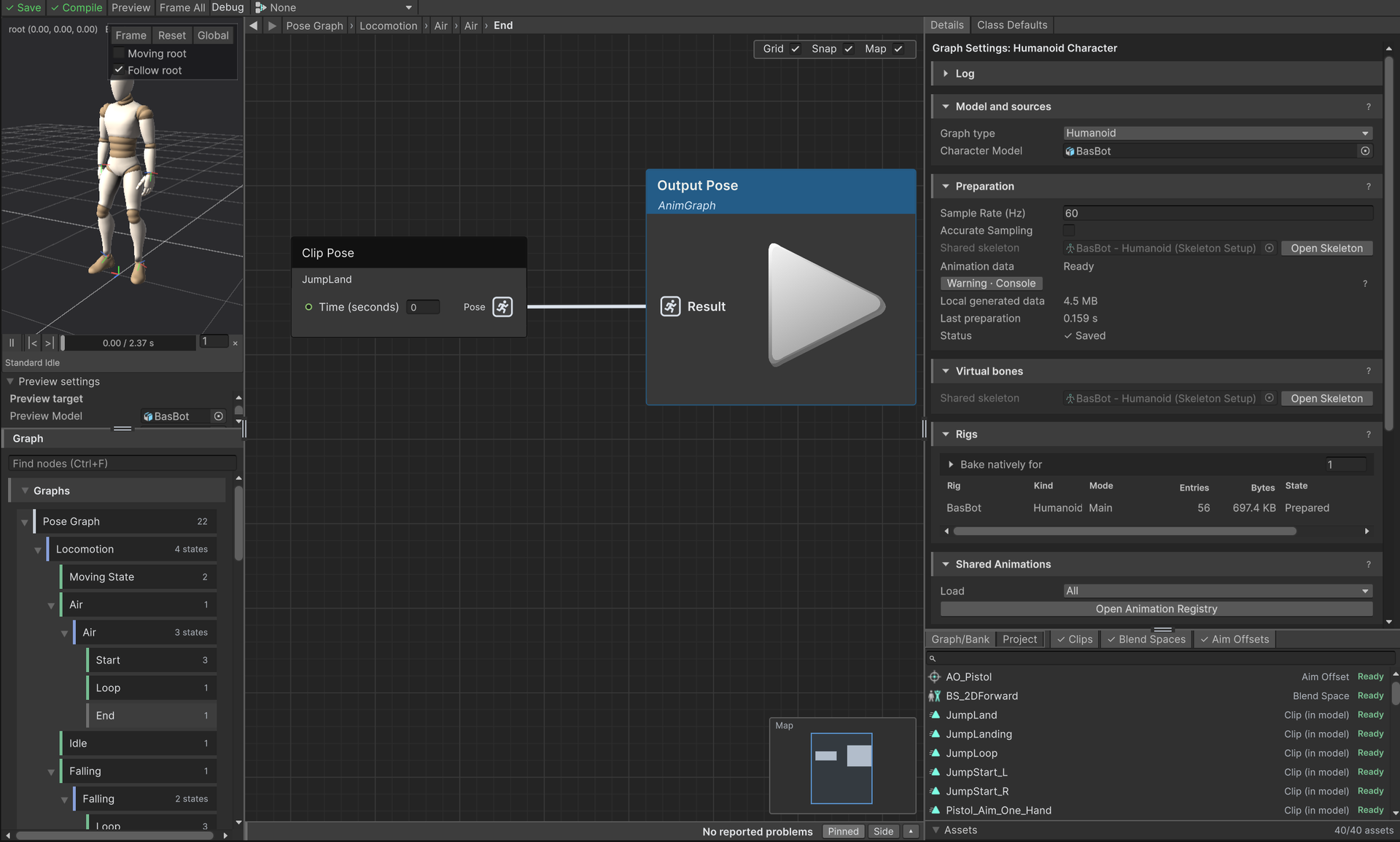
Open the tool
Double-click an Animation Graph, or use Tools > Burst Animation System > Editors > Graph Editor.
Graph navigation
The left panel groups Runtime Preview, Graphs, Variables, Slots and Cached Poses.
Double-click a State Machine node to open its state canvas. Double-click a state to edit its pose graph. Use the graph path or outline to go back.
Pose canvas
Connect pose nodes to Output Pose. Use Grid, Snap and Map to arrange or navigate the canvas.
The selected card shows its ports and inline values. If a resource offers Show as Pin, use it when you want to connect another node to that asset input.
Node Details and Class Defaults
Select a node to edit it in Details. Select empty canvas space or Graph Settings to inspect the graph settings.
The Class Defaults tab selects the AnimInstance type and its starting field values. For a graph variable, select its declaration to edit its name, writer and default.
| Control or section | Function |
|---|---|
| Get | Create a getter from a variable declaration. You can also drag the declaration onto the canvas. |
| Create Variable | Drag a value input into empty canvas space. Use Create Variable and Create and Connect to add a declaration and connect it. |
Private preview and Live Debug
Use Runtime Preview to run the graph on a preview model. Its controls and temporary values affect the private preview.
In Play Mode, the Debug picker lists running characters that use the open graph. Choose one to inspect its completed pose and live overlays. Animation follows that character while it is selected. Clear the target to return to private preview.
Save and Problems
Save shows whether the graph is saved. Open Problems for preparation or validation messages, including failed save actions.
Save writes the graph and can start preparation or script compilation. Review the status before you rely on the new graph in a character.
Basic procedure
- Open or create an Animation Graph and set its Character Model.
- Connect a pose branch to Output Pose.
- Use Details to set the node inputs.
- Preview the graph and resolve Problems.
- Save the graph, then follow the Graph Animator status in the scene.
Saved data
- The graph stores its layout, connections, variables and node settings.
- Temporary preview inputs and scene debug selection are local.
Requirements and limits
- The graph needs its saved model and source clips.
- Keep one Animation Graph per asset file.
Reference details
These instructions describe BAS 1.0 in Unity 6000.3.7f1.
Related Editor types: AnimationGraphWindow.