
 Documentation
Editor guide
Skeleton Editor
Inspect bones, sockets, virtual bones and rig settings.
Editor view
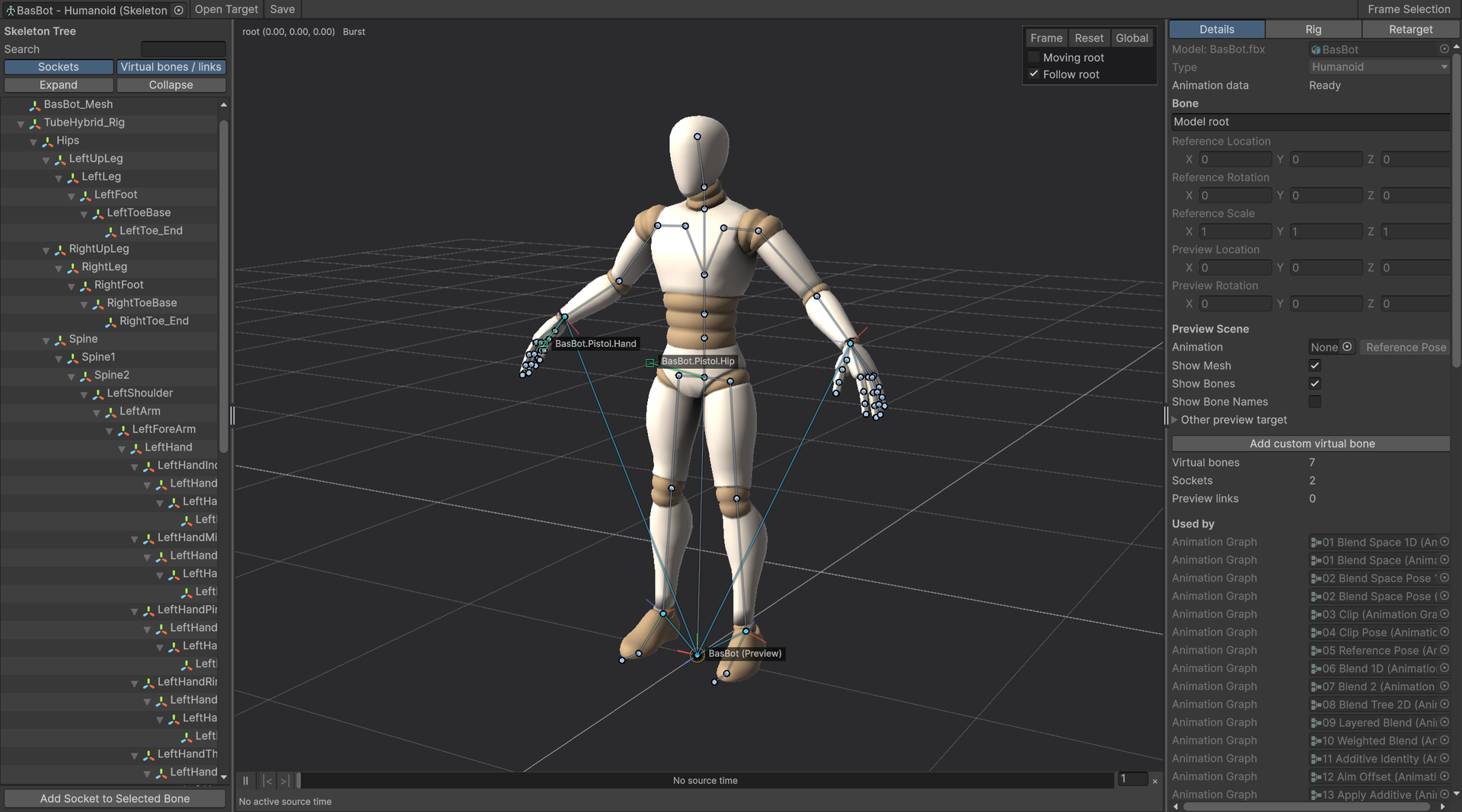
Open the tool
Double-click a Skeleton Setup asset, or use Tools > Burst Animation System > Editors > Skeleton Preview.
Skeleton Tree
The tree lists the target hierarchy and its available helpers. Search narrows the visible entries.
Select a bone, socket or virtual bone to show the matching Details. Add Socket creates a helper attached to a bone.
Viewport
The viewport shows the mesh with the selected bone and helper display options. The preview can use an animation clip or graph.
Mesh, bones, sockets, virtual bones and bone names are independent display choices.
Details
Details follows the selected hierarchy item. Socket controls edit the socket name, parent bone and local transform.
A socket preview attachment is a saved model or prefab shown only in the preview. It is not added to the imported character.
Rig settings
The rig view shows Unity model rig settings and BAS target information. When no Skeleton exists, use Create Skeleton to see its destination and create it.
Treat an importer Apply operation as a source asset change. A camera or display change is only a preview choice.
Asset Inspector
The asset Inspector shows the target setup and prepared data. Open the Skeleton Editor to inspect bones, sockets and virtual bones.
Basic procedure
- Open the rig Skeleton Setup.
- Select a bone in the tree and inspect it in the viewport.
- Add or select a socket or virtual bone when the graph needs one.
- Review rig and preparation settings, then update preparation after a relevant change.
Saved data
- Skeleton Setup owns sockets, virtual bone declarations and shared target preparation data.
- Importer changes belong to the model source. Preview attachments do not modify that model.
Requirements and limits
- A virtual bone is prepared skeleton data and has no Transform on the imported model.
- A socket uses an exact path below the model root. Keep its name and parent reference valid. Browsing and choosing a preview model do not create a Skeleton.
Reference details
These instructions describe BAS 1.0 in Unity 6000.3.7f1.
Related Editor types: SkeletonPreviewWindow, SkeletonSetupInspector.