
 Documentation
Editor guide
Blend Space Editor
Place clip samples on a 1D or 2D map and inspect their blend on the preview mesh.
Editor view
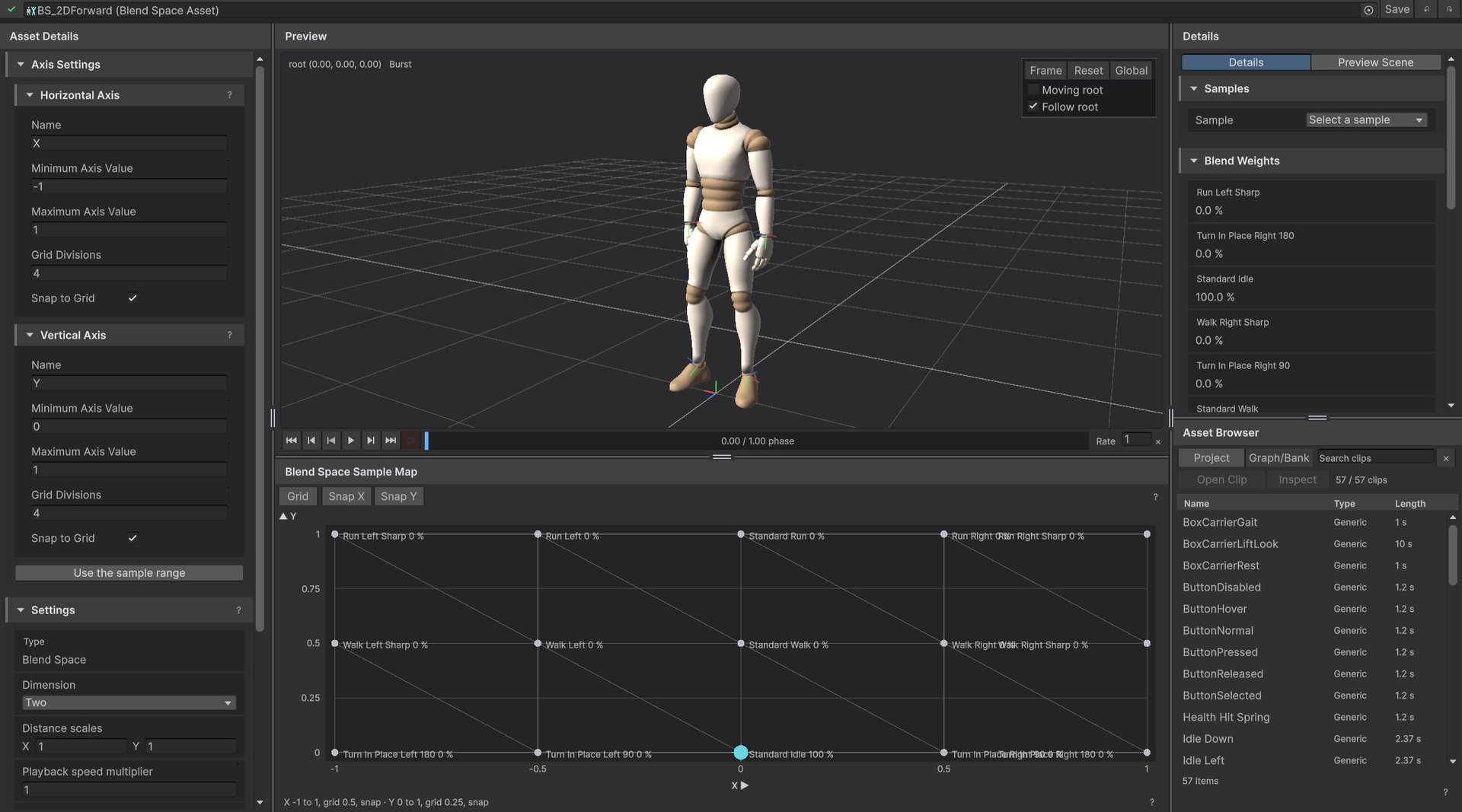
Open the tool
Double-click a Blend Space asset, or use Tools > Burst Animation System > Editors > Blend Space Editor.
Asset Details
Axis names describe the query coordinates. Axis limits, grid divisions and snapping control the map display and sample placement.
Distance scales affect runtime blend weights. The displayed axis range and grid do not change the runtime calculation.
| Control or section | Function |
|---|---|
| Dimension | Choose one or two axes for a Blend Space. |
| Axis names | Name the query values used by the graph. |
| Axis limits / Grid | Set the Editor map range and grid divisions. |
| Distance scales | Set positive coordinate scales used by the blend calculation. |
| Phase / Loop | Choose sample phase handling and asset loop behavior. |
| Event / Curve policy | Choose how sample animation data combines. |
Viewport and transport
The viewport shows the result on the preview mesh at the current query point. Transport controls the sample playback used for that preview.
Changing the query point changes sample weights. Changing the preview rate changes playback speed, not the sample coordinates.
Sample Map
Each point is a sample clip and a query position. The map shows the sample layout and current blend weights.
Drag a sample to change its saved coordinate. Move the preview query point to inspect blending without moving a sample. Grid and Snap controls affect placement.
Sample Details
Select a sample to edit its clip and coordinate. Duplicate and Delete act on the selected sample.
Preview sample moves the query to that sample. Open Clip opens the selected source in the Clip Editor.
Preview Scene
Preview model selects the visible target. The saved Skeleton sets the preparation rig. A graph context supplies source mappings and setup where required.
An additive asset also needs a preview base pose. The base and Alpha controls affect this preview composition.
Asset Browser
Browse compatible animation sources from the project or the current graph and prepared-content context.
Use source clips as map samples. Select a browser row to inspect it, or open the clip for separate editing.
Asset Inspector
The asset Inspector identifies the Blend Space and opens the authoring window. The sample map and selection controls belong to that window.
Basic procedure
- Create a Blend Space and select its target rig.
- Choose the axis names and sample layout.
- Assign clips and place each sample at a distinct coordinate.
- Move the query point between samples and inspect the result.
- Save the asset.
Saved data
- Save writes the selected Blend Space asset.
- Sample clips remain separate assets. Save Preview Defaults shares the preview model and base clip for this asset. Camera and temporary playback choices stay local.
Requirements and limits
- Each sample needs a valid clip and a unique saved identity. Coincident sample positions are invalid.
- A Blend Space node uses asset sample interpolation. Blend Tree 2D uses Unity Blend Tree weight rules.
Reference details
These instructions describe BAS 1.0 in Unity 6000.3.7f1.
Related Editor types: BlendSpaceAuthoringWindow, BlendSpaceAssetEditor.