
 Documentation
Editor guide
Animation Registry
Find clips and montages, check their names and see which rigs have prepared data.
Concept
Animation Registry is the Editor table of project clips and montages, their play names and Bake for status.
In BAS
Rows show categories, names, compatible rigs, prepared rigs, graph use and name checks. Registry filters change the view without changing animation content.
Sharing metadata belongs to saved clip settings or the montage. Graphs, overrides and code content select All, Categories or None for shared animations. Prepared target data is separate from the Registry row.
Example
Set an owned montage to Every rig it fits with category Actions and name Movement, then inspect its per-rig preparation state in Animation Registry.
Editor
Editor view
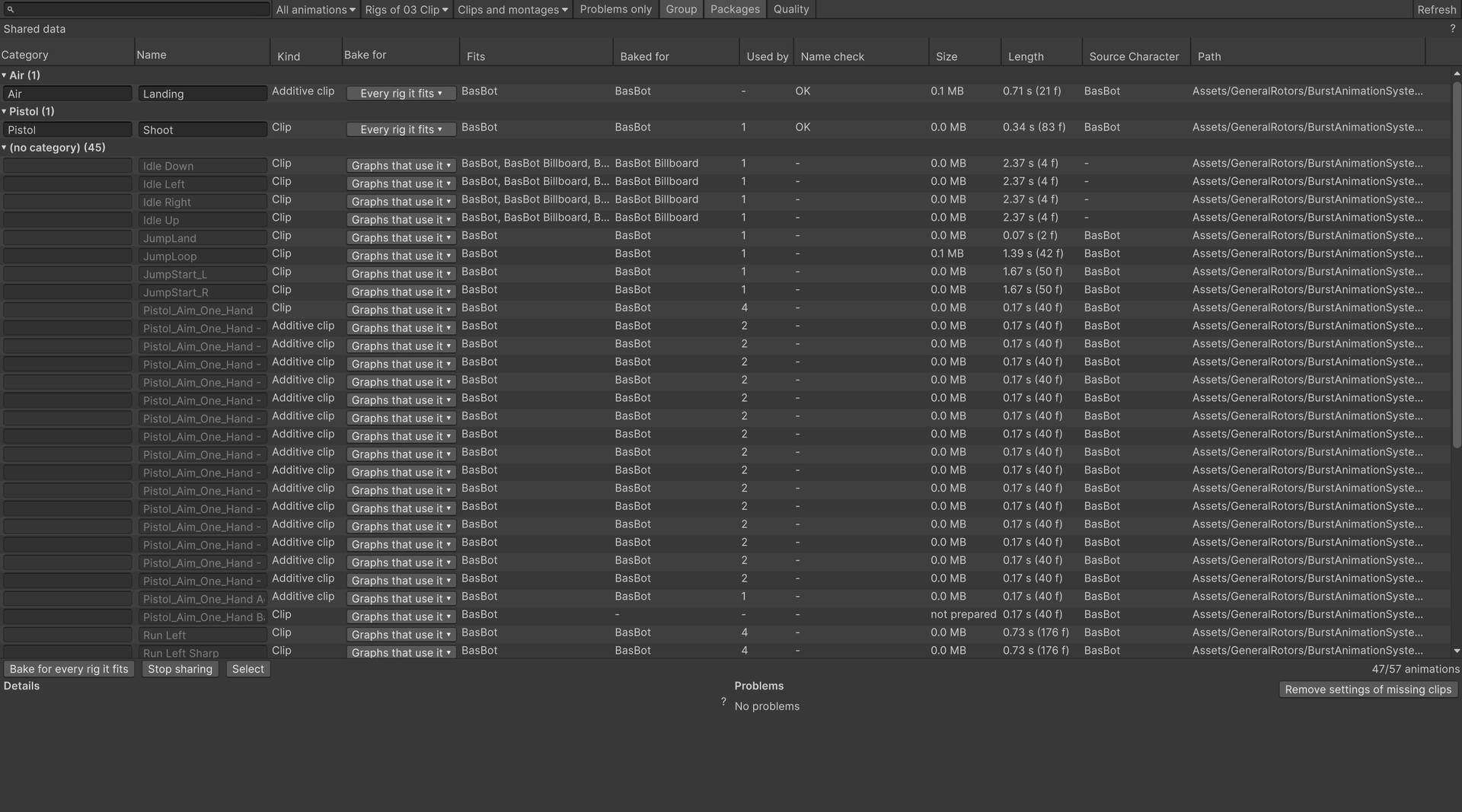
Open the tool
Use Tools > Burst Animation System > Editors > Animation Registry. You can also open it from Shared Animations in Graph Settings.
Search and filters
Search by name or source. Use Show, Rig, Kind and Problems only to narrow the rows. Expand a category to see its entries.
| Control or section | Function |
|---|---|
| Show | Choose all animations, shared animations or animations that are not shared. |
| Rig | Filter for a rig. A scene rig that borrows shows which main rig it uses. |
| Quality | Inspect Pose Hz, Root Motion Hz and Compression for clips. |
Animation rows
A category and name form a play name such as Locomotion/Run. A name cannot contain a slash.
Double-click a row to open its editor. Right-click for Copy play name, Copy play id, Set category and other commands.
| Control or section | Function |
|---|---|
| Bake for | Choose Graphs that use it, Every rig it fits, or These Skeletons. |
| Fits / Baked for | See which rigs can use the source and which rigs already have prepared data. |
| Used by | See which graphs refer to the source. |
| Stop sharing | Set selected rows to Graphs that use it. |
Selected animation details
Check why a source fits or fails for each rig, which rigs have prepared it, and whether another animation has its play name on the same rig.
A Clip Playback Preset or Montage Playback Preset is a separate asset. Pass its playback value to a compatible AnimInstance or GraphAnimator call.
Name, source and rig problems
Use Select to find the source of a problem. The list includes names or IDs that collide on one rig, clips with no Source Character and Lost settings.
Use Relink when a clip settings entry lost its source and you can identify the correct replacement.
Basic procedure
- Open Animation Registry and select the rig or source kind.
- Find your clip or montage.
- Check its play name, Bake for scope and per-rig status.
- Set sharing on an editable source and save a graph that uses it to prepare the data.
Saved data
- Clip metadata is in ProjectSettings/BurstAnimationSystem/ClipSettings.asset. Montage metadata is in the montage.
- A graph, animation override or code graph can load All, Categories or None of the shared animations.
Requirements and limits
- Package rows are read-only. Play Mode also makes the Registry read-only.
- Play names must be unique within each rig. Two separate rigs can use the same name.
Reference details
These instructions describe BAS 1.0 in Unity 6000.3.7f1.
Related Editor types: AnimationRegistryWindow, ClipPlaybackAssetEditor, MontagePlaybackAssetEditor.