
 Documentation
Editor guide
Create Animation Assets
Choose the target model and create a graph, Blend Space, Aim Offset or Montage.
Editor view
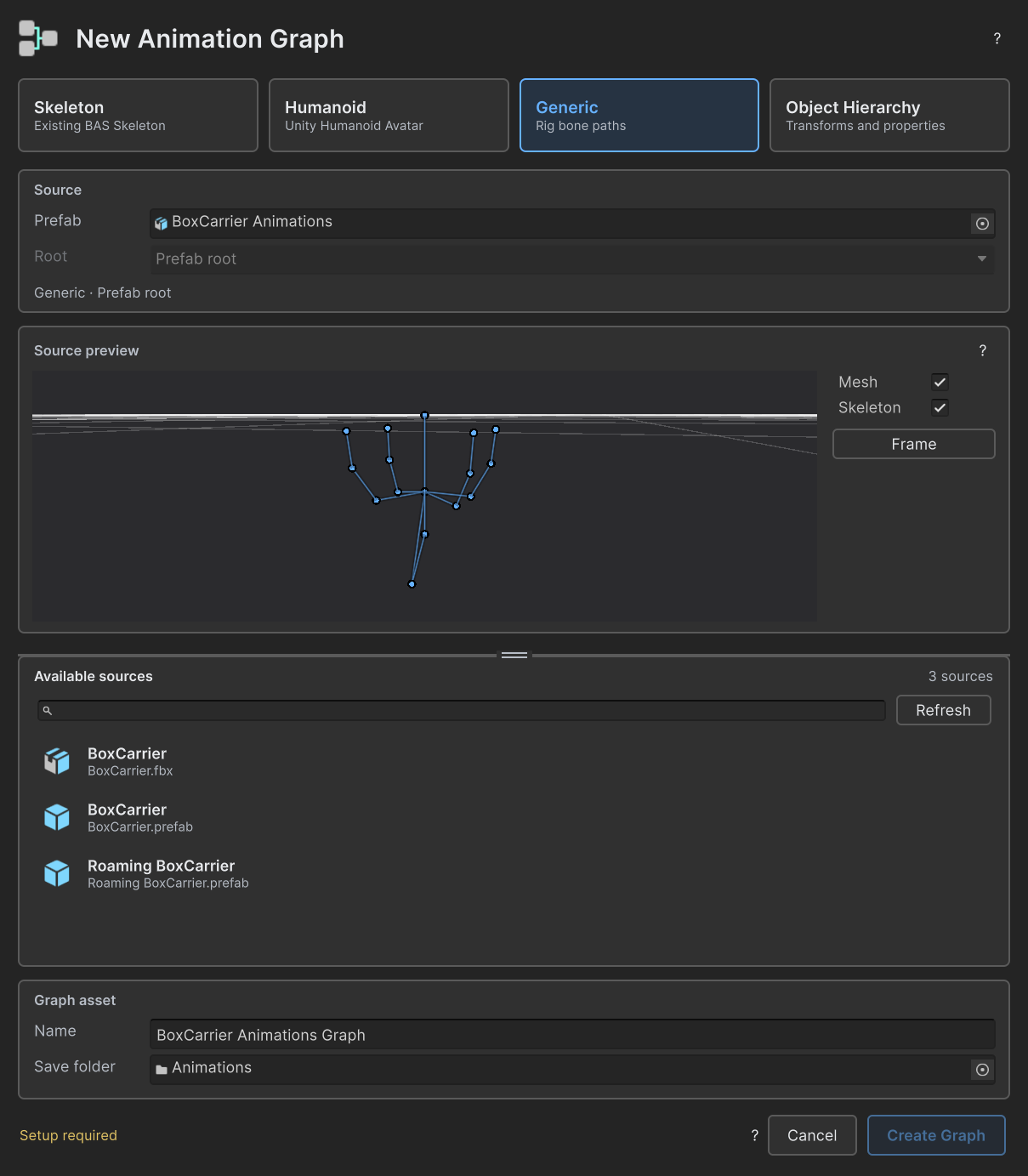
Open the tool
Use the main Create commands under Tools > Burst Animation System, or the matching Assets > Create > Burst Animation System command.
Type and source
Choose Humanoid, Generic or Object Hierarchy to match the saved source model.
The source preview lets you confirm the chosen model before creation.
Model catalog
The catalog lists compatible saved sources for the selected type. Search narrows the displayed models.
Selecting a source updates the source fields and preview. It does not create an asset until Create is used.
Name and destination
Choose an asset name and folder inside Assets. Creation can start from a selected model, prefab, graph context or folder.
The primary button names the asset being created. New Blend Spaces and Aim Offsets still need samples after creation.
Basic procedure
- Choose the asset creation command.
- Select the target type and model.
- Set a name and destination folder.
- Create the asset and continue in its editor.
Saved data
- Create writes a new asset to the selected destination.
- Cancel leaves creation unfinished.
Requirements and limits
- The source must be a supported saved model or prefab.
- Choosing a source type does not convert the imported rig to another type.
Reference details
These instructions describe BAS 1.0 in Unity 6000.3.7f1.
Related Editor types: GraphCreationWindow.