
 Documentation
Editor guide
BAS Preferences
Choose clip double-click shortcuts, Skeleton creation and preview handle settings.
Editor view
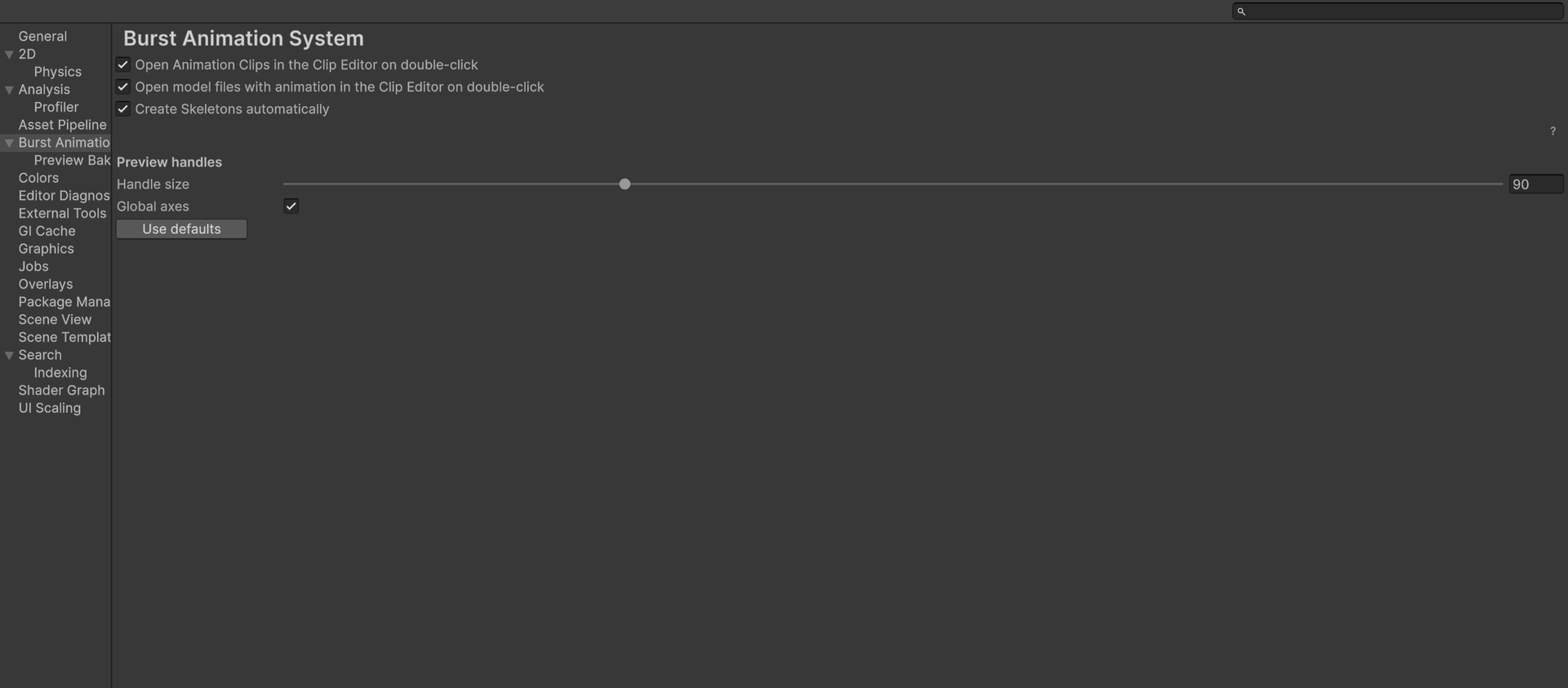
Open the tool
Use Tools > Burst Animation System > Settings > Preferences, or Edit > Preferences > Burst Animation System.
Personal settings
These options take effect when you change them.
| Control or section | Function |
|---|---|
| Open Animation Clips in the Clip Editor on double-click | Open the selected Animation Clip in the Clip Editor. On by default. |
| Open model files with animation in the Clip Editor on double-click | Open the first clip in a model that contains animation. On by default. |
| Create Skeletons automatically | Let Compile, Save, Play entry and builds create missing Skeletons. On by default. |
Preview handles
Handle Size is the on-screen length of an axis in pixels. Global uses the preview world axes. Local uses the input axes.
| Control or section | Function |
|---|---|
| Handle size | Default 90 pixels. Range 40 to 220 pixels. |
| Global axes | Enabled by default. |
| Use defaults | Restore the default size and Global axes. |
Basic procedure
- Open BAS Preferences.
- Choose the two double-click shortcuts.
- Choose whether BAS can create missing Skeletons automatically.
- Set the handle size and axes for your preview work.
Saved data
- BAS stores the double-click and Skeleton choices in UserSettings/BurstAnimationSystem/BasUserSettings.json. Handle size and axes use Unity Editor preferences.
Requirements and limits
- When automatic Skeleton creation is off, Save or Compile asks before creating a missing Skeleton. Play entry and builds report the missing Skeleton.
Reference details
These instructions describe BAS 1.0 in Unity 6000.3.7f1.
Related Editor types: BasUserPreferences, GraphPreviewHandleSettings.