 Documentation
Burst Animation System 1.0
Playground and Gallery
Try the BAS sample scenes and open the example graphs.
Import the samples
- Open the BAS package in Package Manager.
- In Samples, select Import next to Playground and Gallery.
- Open Edit > Project Settings > Player. Set Active Input Handling to Input Manager (Old) or Both for the sample controls.
- Open a scene from Tools > BurstAnimationSystem Tools > Samples. Enter Play Mode to try it.
The scenes support the Built-in Render Pipeline, URP 17.3 and HDRP 17.3 with Unity 6000.3. The sample shaders select their passes for the active pipeline.
Playground
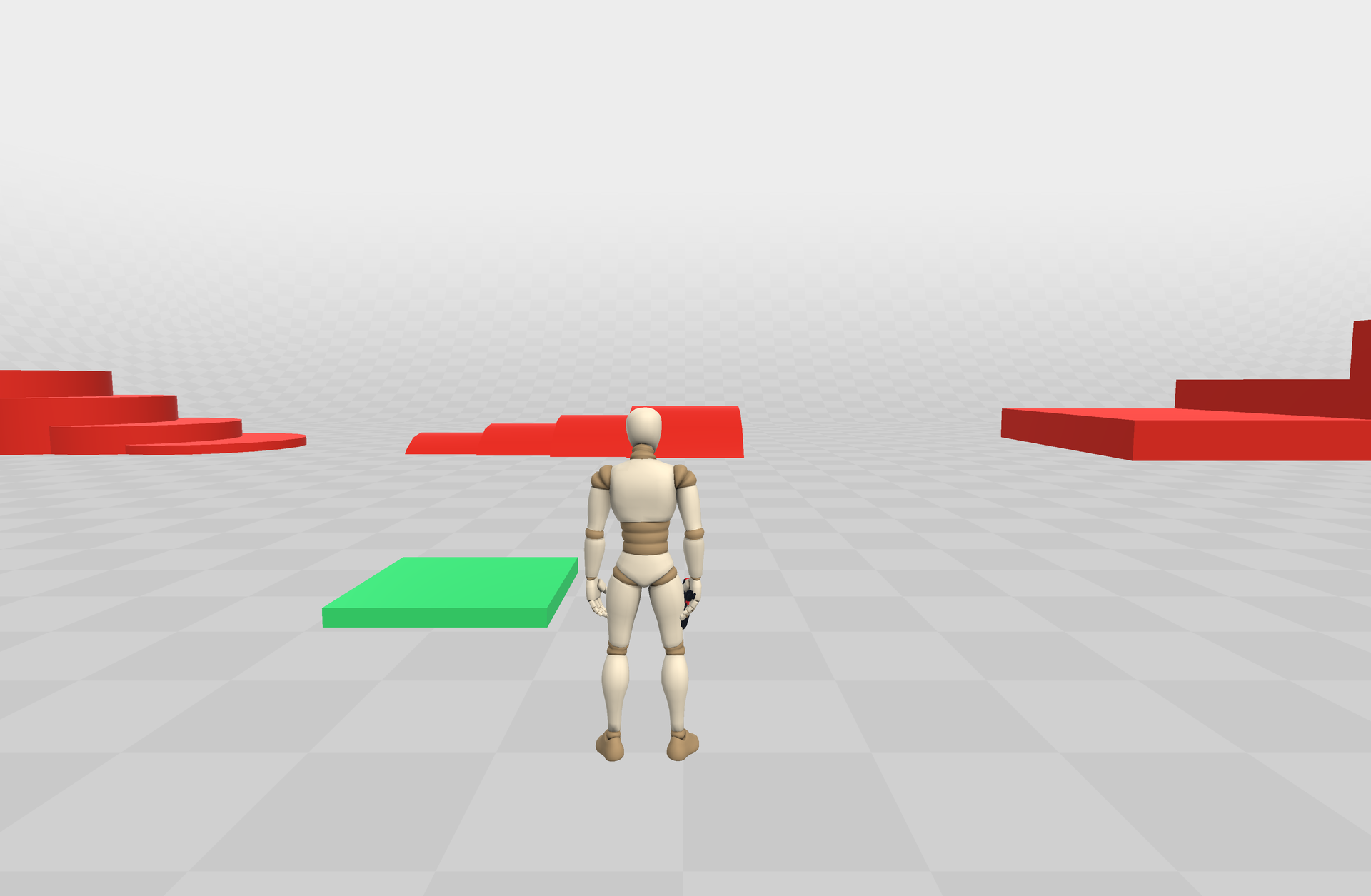
Move BasBot and try walking, running, jumping and aiming.
| Input | Action |
|---|---|
| W, A, S, D | Move. |
| Shift | Hold to run. |
| Space | Jump while moving. |
| Hold right mouse button | Aim. |
| Left mouse button while aiming | Fire. |
Step on the pressure plate to spawn a carrier. Step off the plate before you trigger it again.
Gallery
Explore 73 examples across 38 stations. Use the example buttons to change graphs or search by node name. Try locomotion, Aim Offset, Layered Blend, Slots, Cached Pose or ragdoll blending.
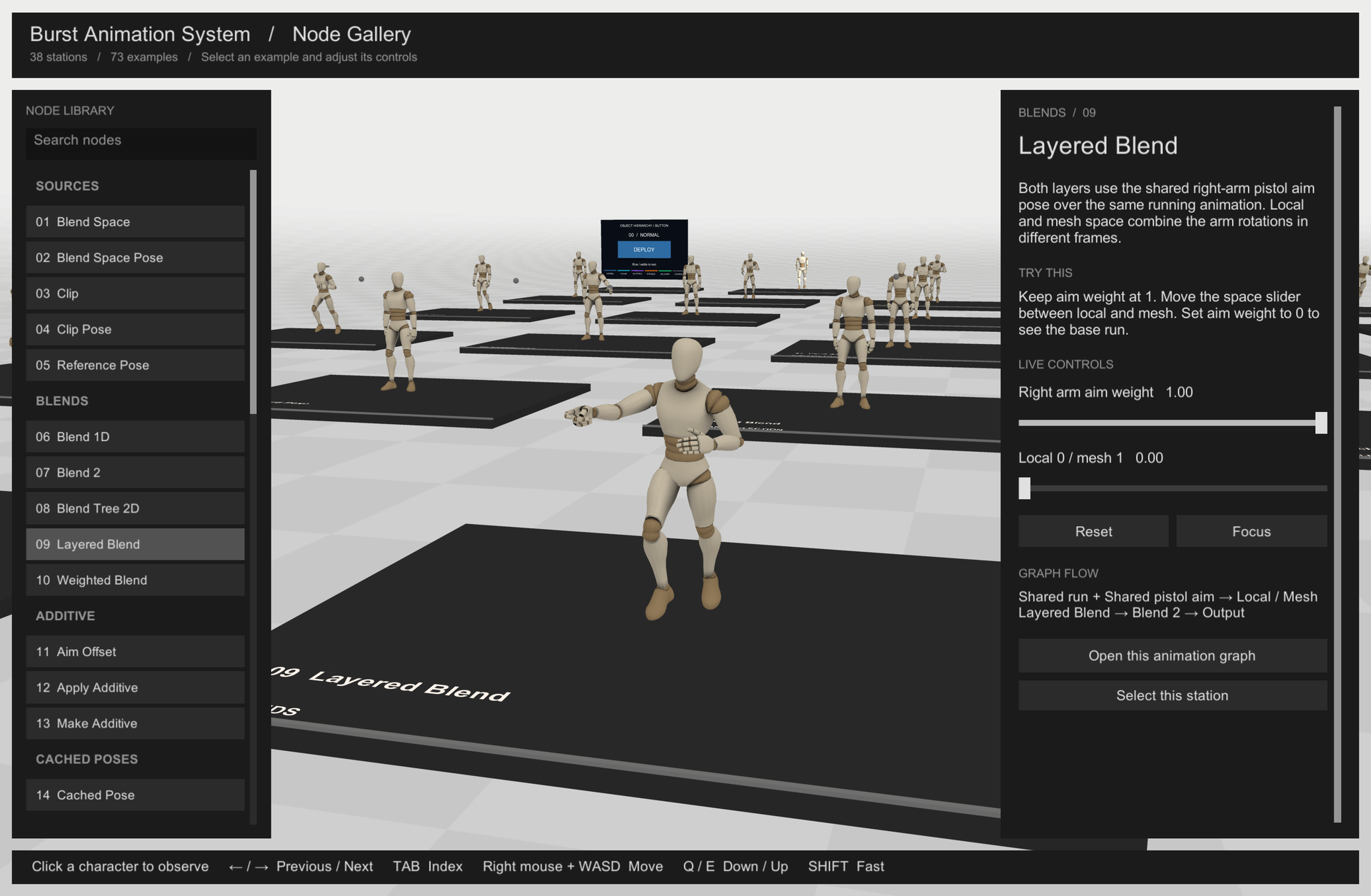
| Input | Action |
|---|---|
| Left or right arrow | Go to the previous or next station. |
| Home | Go to the first station. |
| Tab | Show or hide the menu. |
| Hold right mouse button and move the mouse | Turn the camera outside the menu. |
| Hold right mouse button with W, A, S, D or Q and E | Move the camera or change its height. |
In the ragdoll example, set Alpha to 0 for the reference pose or 1 for the physics pose. Select Reset to stop the physics and restore the reference pose.
To use an example as a starting point, copy its graph before you edit it.
Sample a pose at a fixed time
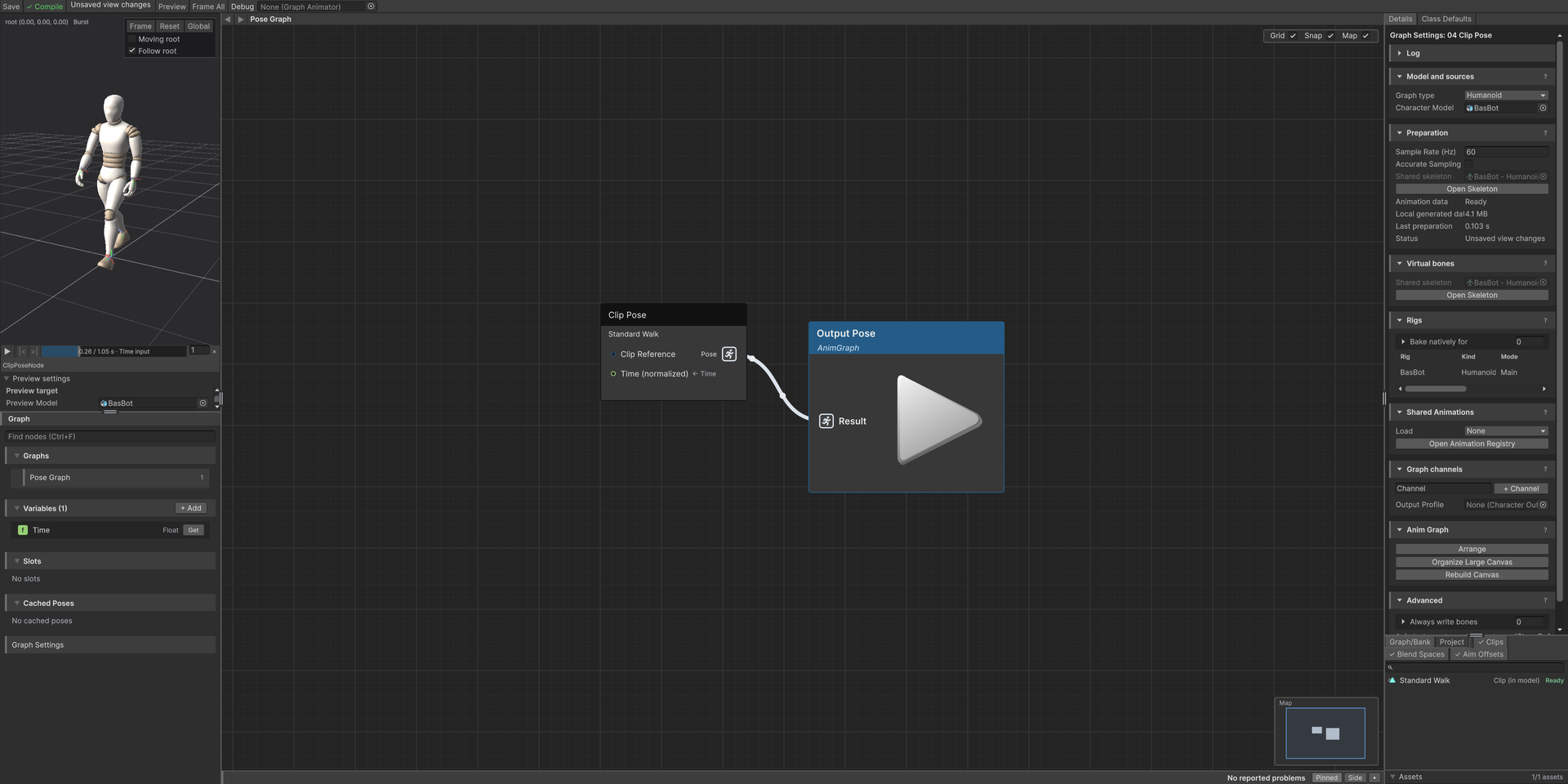
- In the imported Gallery > Graphs folder, open 04 Clip Pose.
- Select the Clip Pose node. It samples Standard Walk and sends its Pose to Output Pose.
- In Preview settings > Preview inputs, change Time from 0.25 to 0.5. The node uses Normalized time, so these values sample one-quarter and halfway through the clip.
The node holds the pose until Time changes. Seek samples the new pose without applying root motion or firing events between the old and new times.