 Documentation
Node reference / Additive
Apply Additive
Apply an additive delta to an ordinary base pose.
How it works
Alpha controls how much of the delta is applied. It is clamped to 0 to 1. At 0, the result is the base pose.
Mesh Space selects component-space delta rotations. With Mesh Space off, the node applies a Local delta.
The default Curve Mode adds the delta curves to the base curves. Event Mode controls which input events pass through.
Inputs and output
| Port | Type | Function |
|---|---|---|
| Base Pose | Ordinary pose | The pose that receives the delta. |
| Additive Pose | Additive delta | The delta in the selected space. |
| Alpha | Float | Delta amount. The default is 1. |
| Pose | Output | An ordinary pose with the delta applied. |
Settings
| Setting | Default | Function |
|---|---|---|
| Alpha | 1 | Set the additive amount or connect an input. |
| Mesh Space | Off | Enable for a Mesh delta. Disable for a Local delta. |
| Event Mode | Always | Select input events. |
| Curve Mode | Additive | Select how delta curves combine with the base. |
| LOD Threshold | Disabled | Above the level, return Base Pose and stop demand for the additive input. |
Common node controls
Name changes the canvas label. Type identifies the node and is read-only. Advanced shows structural pose connections and retained data.
Scalar input rows can use a stored constant or a compatible connected source. Use Show as Pin where available to show an optional input on the card. The selected source supplies the value.
Events and curves
| Setting | Function |
|---|---|
| Event Mode: Highest Weighted | Use events from the highest-weighted contributing input. |
| Event Mode: Always | Allow events from all contributing inputs. |
| Curve Mode: Interpolated | Blend curve values with the input blend weights. |
| Curve Mode: Additive | Add the contributing curve values according to the operation. |
| Curve Mode: Maximum | Use the largest contributing curve value. |
Level of detail
| Setting | Function |
|---|---|
| Disabled | Apply no node threshold. |
| Enabled | Run the node when the character LOD level is at or below the selected level. Level 0 is a valid enabled threshold. |
| Above the threshold | Use the pass-through behavior stated for this node. LOD changes do not replace the node input requirements. |
Setup example
- Connect locomotion to Base Pose.
- Connect a prepared additive clip or a Make Dynamic Additive result to Additive Pose.
- Match the delta space and adjust Alpha.
Try it in Gallery
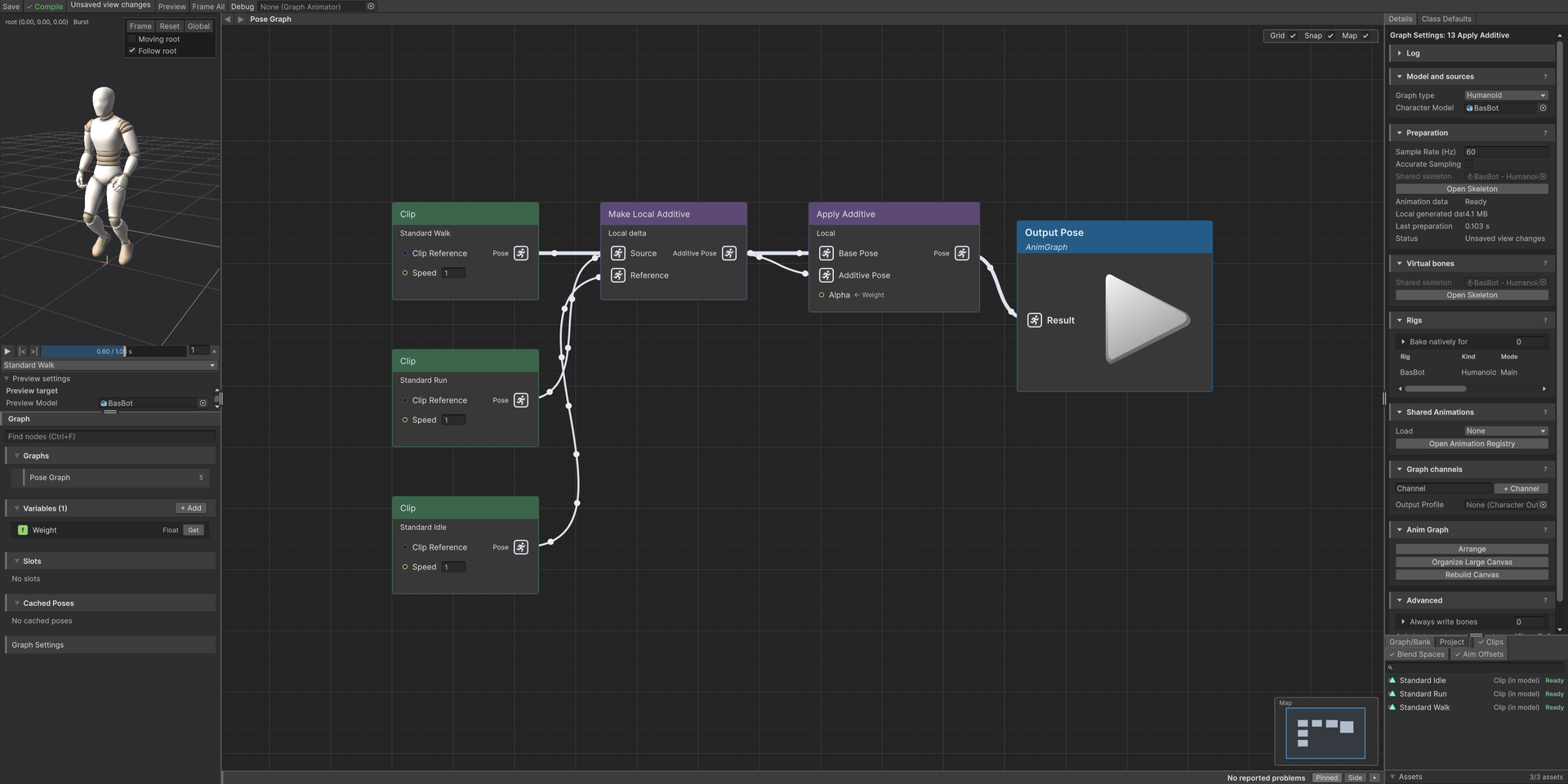
Open 13 Apply Additive in the Gallery Graphs folder. Follow the base clip and the local delta into Apply Additive.
Requirements and limits
- Base Pose must be ordinary. Additive Pose must be a compatible delta.
- An ordinary clip is not an additive delta unless its clip settings or another node convert it.
Editor guides
Reference details
BAS 1.0 reference. Node type: ApplyAdditiveNode. Main source: AnimNodes.cs. Defaults also use the node constructor and the shared Editor field definitions.