
 Documentation
Node reference / Sources
Blend Space
Play and blend the samples in a Blend Space asset at a 1D or 2D query position.
Concept
A Blend Space is an animation asset that places clip samples on a one- or two-dimensional coordinate map.
In BAS
The query position determines which samples contribute and their weights. The Editor shows the map, current query and sample details.
BAS Blend Space assets use their sample interpolation rules. A Blend Tree 2D node uses Unity Blend Tree weight rules and pose-node inputs instead.
Example
Place idle, walk and run samples on a speed axis, then change the query to inspect their blend.
Node
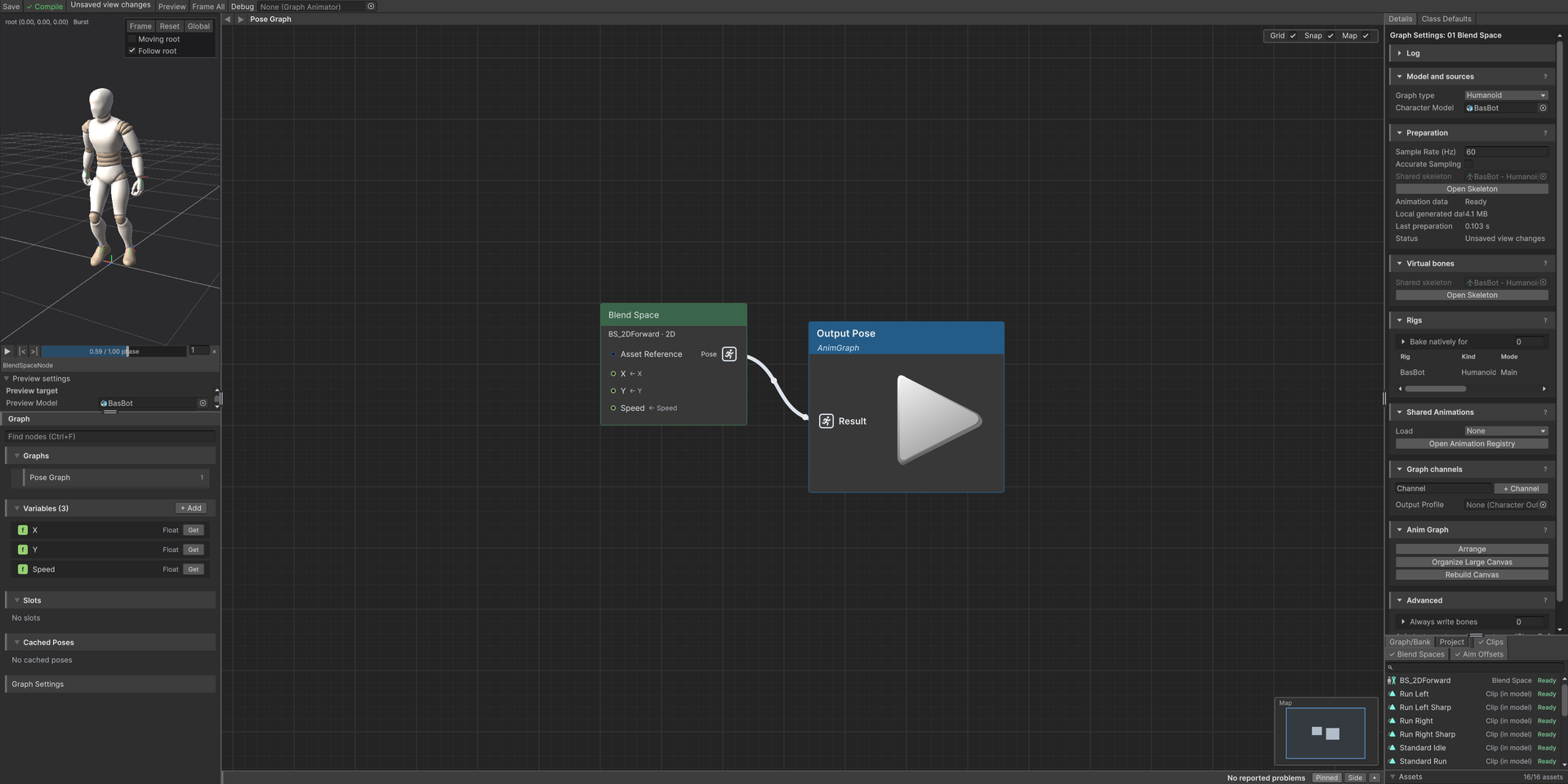
How it works
X and Y select the query position. A 1D asset uses X only. A 2D asset uses the sample triangles to calculate the blend weights.
Speed controls playback. The asset selects loop behavior, phase handling, event selection and curve blending.
The asset stores animation clips as samples. Use Blend Tree 2D when the samples must be pose graph inputs with Unity Blend Tree weight rules.
Inputs and output
| Port | Type | Function |
|---|---|---|
| Blend Space | Optional BlendSpaceAsset | Read a compatible asset from a connected source. |
| X | Float | Horizontal query coordinate in the asset units. |
| Y | Float | Vertical coordinate for a 2D asset. |
| Speed | Float | Playback rate. The default is 1. |
| Pose | Output | The blended sample pose or compatible additive delta. |
Settings
| Setting | Default | Function |
|---|---|---|
| Blend Space | None | The Blend Space asset to read. |
| Show as Pin | Off | Show the Blend Space input on the node. A configured source keeps the pin visible until you disconnect it. |
| X / Y | 0 / 0 | Set coordinates or connect inputs. The asset axis labels can replace these labels. |
| Speed | 1 | Set the playback rate. The field can appear as Play Speed when an axis is named Speed. |
Common node controls
Name changes the canvas label. Type identifies the node and is read-only. Advanced shows structural pose connections and retained data.
Scalar input rows can use a stored constant or a compatible connected source. Use Show as Pin where available to show an optional input on the card. The selected source supplies the value.
Expose for Override makes the Clip or Asset resource available to an Animation Graph Override asset. It does not change the assigned resource by itself. The clip Additive report links to the clip settings where applicable.
Related asset settings
| Setting | Function |
|---|---|
| Dimension | Choose One or Two for Blend Space. Aim Offset requires a 2D layout. |
| Axis labels and Axis Scale | Name the coordinates and set their relative scale for the sample layout. |
| Samples | Set a clip and query position for each sample. Frozen pose assets also use Sample Time. |
| Normalized Phase | For playback, use normalized sample phase rather than a common seconds clock. |
| Loop | Select repeated playback or held ends for the asset. |
| Event Mode / Curve Mode | Select asset event and curve blending rules. Frozen Aim Offset samples have no timeline events. |
| Axis range, grid and snap | Control the Editor sample map. These settings do not change runtime blending or preparation. |
Setup example
- Create a Blend Space asset and place the required clips at sample coordinates.
- Assign the asset to this node.
- Connect the movement coordinates to X and Y, then connect Pose to the graph.
Try it in Gallery
Open 01 Blend Space in the Gallery Graphs folder. Change X and Y to change how the Blend Space combines its samples.
Requirements and limits
- Assign a Blend Space, not an Aim Offset.
- The asset samples must be prepared and have compatible pose representations.
Editor guides
Reference details
BAS 1.0 reference. Node type: BlendSpaceNode. Main source: BlendSpaceAsset.cs. Defaults also use the node constructor and the shared Editor field definitions.